If you’ve ever wanted full control over your Minecraft world — custom rules, private access, mods, or just chaos with friends — creating your own minecraft java server is the way to go.
It sounds technical. It’s not.
This guide explains everything clearly: local vs hosting, step-by-step setup, real costs, and what beginners often miss. No fluff. No risky shortcuts. Just practical help.
This guide applies only to Java Edition. If you’re new, here’s a full overview of Minecraft Java Edition before setting up your server.
What Is a Minecraft Java Server?
A Minecraft Java server is a program that runs the Java edition of Minecraft in multiplayer mode. Instead of joining someone else’s world, you host your own.
You control:
Who joins
World settings
Game mode
Mods and plugins
Backups and security
Important: This guide applies only to Minecraft: Java Edition on PC/Mac/Linux. It does not apply to Bedrock Edition.
Official documentation reference: Minecraft server setup guide
Local vs Hosting: Which One Should You Choose?
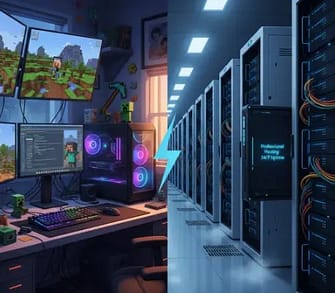
Before installing anything, decide where your server will run.
This decision affects performance, cost, and long-term flexibility.
Option 1: Local Server (Host on Your Own PC)
You run the server on your personal computer.
Best For:
1–5 players
Testing mods
Learning how servers work
Short sessions with friends
Pros:
Free (no hosting fee)
Full control
Easy to start
Cons:
Your PC must stay on
Performance depends on your hardware
You need port forwarding for external access
Not ideal for many players
If your internet upload speed is low, friends may experience lag.
If you want more advanced setups and server types, explore our complete guide on Minecraft Java servers.
Option 2: Paid Hosting Provider
A third-party company hosts the server for you.
Examples include well-known hosting platforms (research and compare features before buying).
Best For:
5+ players
24/7 uptime
Public servers
Stable long-term setup
Pros:
Always online
Better performance
No port forwarding needed
Easier management dashboards
Cons:
Monthly cost
Less low-level control compared to local
If your goal is a stable community server, hosting is the smarter long-term choice.
System Requirements (Realistic Expectations)
Before creating a minecraft java server locally, make sure your PC can handle it.
Minimum (Small Private Server)
8GB RAM (16GB recommended)
SSD storage (strongly recommended)
Modern CPU (Intel i5/Ryzen 5 or better)
Stable broadband internet
Why SSD Matters
Minecraft constantly reads and writes world data. SSD reduces chunk loading lag significantly compared to HDD.
Step-by-Step: How to Create a Minecraft Java Server (Local Setup)
Let’s walk through the exact process.
Step 1: Install Java (If Needed)
Minecraft Java servers require Java 17 or newer (for current versions).
Download from the official website:
https://www.oracle.com/java/technologies/downloads/
or use OpenJDK builds from trusted providers.
To check Java installation:
Code:- java -version
If it returns a version number, you’re ready.
Step 2: Download the Official Server File
Go to the official Minecraft server page: https://www.minecraft.net/en-us/download/server
Download the latest server.jar file.
Never download server files from random websites. Stick to the official source.
Before downloading the server file, make sure you have the correct version installed. You can follow our complete Minecraft Java download guide if needed.
Step 3: Create a Server Folder
Create a new folder on your desktop like:
Move the downloaded server.jar into that folder.
Keep everything organized from the start.
Step 4: Run the Server File
Double-click server.jar.
The first time, it will fail. That’s normal.
It creates a file called:
Open it and change:
to: eula=true
This confirms you accept Mojang’s End User License Agreement.
Reference: Minecraft EULA
Step 5: Run the Server Again
Double-click the server file again.
Now it will generate:
world folder
server.properties
logs
other configuration files
If you see “Done” in the console, your server is running.
Congratulations. You just created your own minecraft java server.
How to Join Your Own Server
Open Minecraft Java Edition.
Click:
Multiplayer → Add Server
If you’re hosting locally, use:
You can now join your world.
Allowing Friends to Join (Port Forwarding Explained)
If friends outside your home network want to join, you must:
Find your public IP address
Port forward port 25565 in your router
Share your public IP
Default Minecraft port: 25565
Port forwarding instructions depend on your router model. Check your router manufacturer’s official documentation.
Security Tip:
Only open the required port. Close it if you stop hosting.
Editing Server Settings (server.properties)
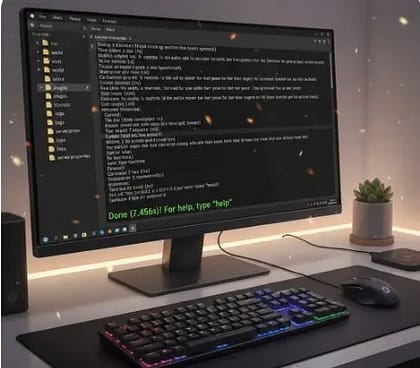
Open server.properties with a text editor.
Here you can modify:
Game mode
Difficulty
Max players
PvP setting
View distance
Online mode (keep this true for security)
Restart the server after making changes.
Adding Mods or Plugins (Optional but Popular)
There are two main server types:
Vanilla
Official server. No mods.
Modified Server Software
Examples:
Paper
Spigot
Forge
These allow plugins or mods.
Use official project pages only:
Each has installation instructions on their official site.
If you’re a beginner, start with vanilla. Learn basics first.
How Much Does a Minecraft Java Server Cost?
Let’s break this down honestly.
Local Server Cost
Direct cost: Free
Indirect cost:
Electricity
Internet usage
Hardware wear
For casual use, cost impact is minimal.
Hosting Provider Cost (Typical Range)
Shared hosting plans usually start around:
₹300 – ₹800 per month (India pricing estimate)
$5 – $15 per month (international average)
Price depends on:
RAM allocation
Player slots
Server location
Support level
Avoid extremely cheap plans with unrealistic claims.
More RAM = better performance for modded servers.
How Much RAM Do You Actually Need?
General guideline:
2GB → 1–4 players (vanilla)
4GB → 5–10 players
6–8GB → Modded or larger groups
Do not allocate all your system RAM to the server. Keep enough for your OS.
Performance Optimization Tips
Even beginners should know these basics.
1. Use an SSD
Reduces chunk lag.
2. Lower View Distance
Reducing from 10 to 6 improves performance significantly.
3. Limit Heavy Mods
Too many mods slow everything down.
4. Keep Java Updated
New versions improve stability and security.
Common Beginner Mistakes
Let’s prevent frustration.
Running Server and Game on Weak PC
This causes lag instantly.
Ignoring Backups
Always copy your world folder regularly.
Turning Off Online Mode
This allows cracked accounts. Not recommended for public servers.
Using Unknown Downloads
Only use official documentation or trusted open-source communities.
Security Basics You Should Not Ignore
Security matters even for small servers.
Keep
online-mode=trueUse strong router passwords
Avoid sharing RCON publicly
Back up your world weekly
If hosting publicly, consider a whitelist.
Minecraft Java vs Bedrock Performance: 9 Real Differences on PC
Should You Choose Local or Hosting?
Here’s the simple answer:
If you just want to play with 2–3 friends occasionally → go local.
If you want:
24/7 uptime
10+ players
Public access
Stability
Then hosting is worth the cost.
Quick Setup Checklist
Install Java (correct version)
Download official server.jar
Accept EULA
Run server once
Configure server.properties
Test with localhost
Set up port forwarding (if needed)
Back up world folder
Security Reminder Box
Never share your public IP publicly.
Always keep online-mode=true.
Back up your world weekly.
Simple but powerful.
Decision Table
| Situation | Best Option |
|---|---|
| 2–3 friends occasionally | Local server |
| 10+ players | Hosting |
| Want 24/7 uptime | Hosting |
| Just testing mods | Local |
My Experience Setting Up My First Server
The first time I created my own Minecraft Java server, I honestly expected something to break. And it did — just not in the dramatic way I imagined. I forgot to edit the EULA file. The server kept closing, and I sat there staring at the screen like it had personally betrayed me. Five minutes later, I noticed the eula=false line. Lesson one: read the small files.
Once it finally ran, I felt weirdly proud seeing the console say “Done.” Joining through “localhost” felt like unlocking a secret level. But the real test came when I tried letting friends join. Port forwarding was the part that made me double-check everything. I learned quickly that rushing router settings is a bad idea.
Performance was another reality check. Running the game and server together pushed my PC harder than expected. Lowering the view distance made a noticeable difference.
The biggest takeaway? Start simple. Don’t jump into heavy mods on day one. Get comfortable with the basics first. After that, everything feels far less intimidating — and way more fun.
Frequently Asked Questions (FAQ)
1. Do I need to pay to create a Minecraft Java server?
You do not need to pay to create a Minecraft Java server if you host it on your own computer. Mojang provides the official server software as a free download. However, you must already own a licensed copy of Minecraft: Java Edition to play on the server. If you choose third-party hosting, that service typically charges a monthly fee depending on resources and features.
Source: Minecraft Official Website
Source: Minecraft EULA
2. What Java version is required for a Minecraft Java server?
Minecraft Java servers require a compatible version of Java, which depends on the Minecraft version you are running. Recent Minecraft releases (such as 1.20+) require Java 17 or newer. Running an outdated Java version can prevent the server from starting or cause stability issues. Always check the official server download page for version-specific requirements.
Source: Minecraft Official Server Download Page
3. Is port forwarding required for friends to join my server?
Port forwarding is required if players outside your local network want to connect to your locally hosted server. Minecraft uses port 25565 by default for Java Edition servers. Without forwarding this port on your router, external connections will not reach your server. If you use a third-party hosting provider, port forwarding is not required because the provider manages network access.
Source: Minecraft Wiki
4. How much RAM should I allocate to a Minecraft Java server?
The amount of RAM required depends on the number of players and whether you use mods. For small vanilla servers with a few players, 2–4 GB is generally sufficient. Larger groups or modded servers require more memory to maintain stable performance. Minecraft does not publish exact RAM requirements for every scenario, so resource needs vary by usage.
Source: Minecraft Wiki
5. Is it safe to set online-mode to false?
Setting online-mode=false disables Minecraft’s built-in account authentication system. This allows players to join without official account verification, which increases the risk of unauthorized access. Mojang recommends keeping online authentication enabled for security. There is no official recommendation supporting disabling online mode for public servers.
Source: Minecraft Wiki
Source: Minecraft EULA
Trusted Sources and References (Short Version)
For accurate and official guidance, refer to these trusted resources:
Official Documentation
Minecraft: Java Edition Server Download – Official server file and setup instructions.
Minecraft Wiki – Server Setup Tutorial – Detailed configuration and setup guide.
Configuration & Technical References
Server.properties Explanation – Full breakdown of server configuration options.
PaperMC / Spigot Documentation – Official documentation for optimized server software.
Hosting & Optimization
Hostinger Setup Guide – Beginner-friendly hosting walkthrough.
Minecraft Optimization Guide (GitHub) – Performance tuning advice.
Final Thoughts
Creating a minecraft java server is not complicated. It just looks technical at first.
Once you understand the structure — Java, server file, EULA, configuration — it becomes straightforward.
Start simple. Test locally. Learn settings. Then upgrade if needed.
You now know:
The difference between local and hosting
Exact setup steps
Realistic costs
Performance basics
Security essentials
That’s everything you need to launch confidently.
If your goal is control, flexibility, and a private Minecraft world that’s truly yours — running your own server is absolutely worth learning.
Free PDF for Complete Guide:- Minecraft_Java_Server_Beginner_Guide
Discover more from GroWithMoney
Subscribe to get the latest posts sent to your email.