If you’re searching for Minecraft Java download, you probably want one thing: the real game, installed safely, without viruses, fake launchers, or sketchy pop-ups.
That’s smart.
Minecraft Java Edition is the original PC version of Minecraft. It supports mods, custom servers, advanced settings, and deep customization. But because it’s so popular, many unofficial websites try to exploit beginners.
This guide shows you the official and safe method to download Minecraft Java Edition, explains system requirements, introduces the official launcher, and highlights common mistakes to avoid.
No myths. No piracy talk. Just clear, practical steps.
What Is Minecraft Java Edition?
Minecraft Java Edition runs on Windows, macOS, and Linux. It’s developed by Mojang Studios and owned by Microsoft.
Java Edition is known for:
Full mod support
Custom servers and plugins
Advanced graphics settings
Snapshot access (early testing versions)
Strong community-driven ecosystem
It differs from Bedrock Edition, which runs on consoles, mobile devices, and Windows Store.
If you’re on PC and want maximum flexibility, Java Edition is usually the right choice.
System Requirements
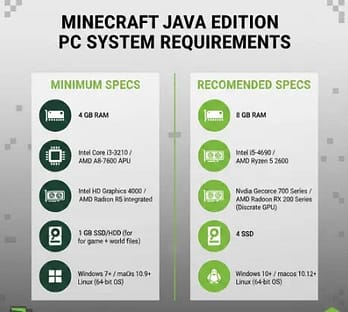
Before starting your Minecraft Java download, confirm your system can handle it. The game is lightweight, but modern updates require stable hardware.
These requirements are based on official guidance from minecraft.net and Mojang documentation.
Minimum Requirements (For Basic Gameplay)
OS: Windows 10/11, macOS 10.14+, or modern Linux distribution
CPU: Intel Core i3-3210 or AMD A8-7600 (or equivalent)
RAM: 4 GB
Storage: At least 1 GB available
GPU: Integrated graphics with OpenGL 4.4 support
You can run the game at low settings with this setup. Expect moderate performance.
Recommended Requirements
CPU: Intel Core i5-4690 or AMD A10-7800 (or better)
RAM: 8 GB or more
SSD storage (strongly recommended)
Dedicated GPU like NVIDIA GTX 700 series or AMD Radeon RX 200
If you plan to install mods, shaders, or high-resolution texture packs, more RAM helps.
Why RAM Matters
Minecraft Java runs on the Java Runtime Environment. It uses allocated memory dynamically. If you install heavy mod packs, insufficient RAM causes lag or crashes.
You can adjust memory allocation later inside the launcher settings.
Official Launcher—The Only Safe Way
There is only one safe method for Minecraft Java download:
Download it directly from the official website.
The official site is
This site is operated by Mojang and Microsoft.
Never download from:
“Free Minecraft Java cracked” websites
Torrent platforms
Random GitHub launchers
YouTube description links
Those files often contain malware or credential stealers.
Step-by-Step: Minecraft Java Download (Official Method)
Follow these steps carefully.
Step 1: Visit the Official Website
Go to:
Click on “Get Minecraft.”
Choose Computer → Minecraft Java & Bedrock Edition for PC.
Important: Java Edition is now bundled with Bedrock Edition for PC if you buy the PC version.
Step 2: Purchase the Game
You must own a legitimate copy.
As of current policy (check minecraft.net for latest pricing), the PC bundle includes both editions.
You’ll need:
A Microsoft account
Payment method (card, digital wallet, etc.)
After purchase, the license links to your Microsoft account.
Step 3: Download the Minecraft Launcher
Once logged in, download the Minecraft Launcher.
The launcher is an official application that:
Installs Java Edition
Manages updates
Lets you select game versions
Allows snapshot access
Manages installations
The launcher is digitally signed and verified.
Step 4: Install the Launcher
Open the downloaded installer.
Follow on-screen instructions:
Accept terms
Choose installation location
Complete installation
The process usually takes under two minutes on modern systems.
Step 5: Log In and Install Java Edition
Open the launcher.
Log in with your Microsoft account.
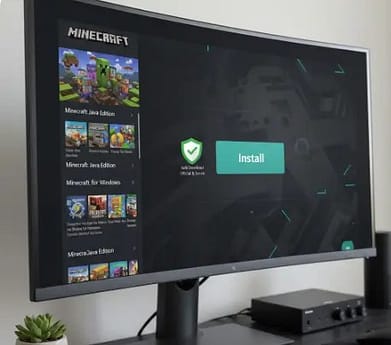
Select Minecraft: Java Edition from the left panel.
Click Install.
The launcher downloads required files automatically.
No manual Java installation is needed. The launcher handles it internally.
Understanding the Official Launcher
The Minecraft Launcher is more powerful than it looks.
Here’s what it allows you to do.
Version Control
You can choose different versions:
Latest release
Older versions
Snapshots (test builds)
This feature helps when:
Joining older servers
Running modpacks
Testing experimental features
Memory Allocation
Inside “Installations,” you can:
Edit installation
Adjust JVM arguments
Increase allocated RAM
Do this carefully. Allocating too much RAM may reduce system performance.
For most players:
2–4 GB is sufficient
6–8 GB for heavy modding
Built-in Java Runtime
Earlier, users had to manually install Java.
Now, the launcher includes a bundled runtime environment.
That reduces compatibility issues and improves security.
Official reference:
Minecraft Launcher documentation—https://help.minecraft.net
Common Mistakes to Avoid
Many users run into problems during Minecraft Java download. Most issues come from simple errors.
Let’s prevent them.
1. Downloading From Unofficial Websites
This is the biggest mistake.
Unofficial launchers often:
Inject ads
Install spyware
Steal login credentials
Distribute pirated builds
Always verify the domain: minecraft.net
2. Using Cracked Versions
Cracked versions:
Break EULA terms
Cannot access official servers
Cannot receive secure updates
Often contain malware
According to Mojang’s official EULA
Only legitimate copies are supported.
3. Confusing Java Edition With Bedrock Edition
Java Edition downloads from minecraft.net.
Bedrock Edition for Windows can also be installed via the Microsoft Store.
They are different platforms with different ecosystems.
If you want mods and advanced server plugins, choose Java Edition.
4. Allocating Too Much RAM
Some players set 16 GB RAM allocation “just because.”
That doesn’t improve performance automatically.
Minecraft performs best with balanced allocation.
Over-allocation can cause system instability.
5. Ignoring Graphics Driver Updates
Outdated GPU drivers cause:
Black screen
OpenGL errors
Launch failures
Update drivers from official sources:
NVIDIA.com
AMD.com
Intel.com
Avoid third-party “driver updater” software.
6. Installing Too Many Mods Immediately
New players often install:
40+ mods
Shader packs
HD textures
Then the game crashes.
Start with vanilla gameplay.
Add mods gradually.
Best PC for Minecraft Java
Minecraft Java Edition does not require high-end hardware, but performance improves with better components. For smooth gameplay at default settings, a modern quad-core processor (such as Intel Core i5 or AMD Ryzen 5), 8GB RAM, and an SSD are generally sufficient. If you plan to use shaders or heavy modpacks, 16GB RAM and a dedicated graphics card provide better stability.
SSD vs HDD – Does It Matter?
Minecraft loads world data from storage. An SSD significantly reduces world loading times and chunk rendering delays compared to a traditional HDD. While the game runs on both, an SSD provides a noticeably smoother experience, especially in large or modded worlds.
8GB vs 16GB RAM – Which Is Better?
8GB RAM works well for vanilla gameplay. However, if you use mods, shaders, or background applications, 16GB RAM offers better multitasking and reduces lag spikes. Allocating too much RAM inside the launcher does not automatically improve performance, so balanced settings are recommended.
Security Tips for Safe Installation
If safety matters to you (it should), follow these practices:
Enable Windows Defender or built-in antivirus
Download only from minecraft.net
Avoid browser extensions offering “free skins.”
Do not share Microsoft login credentials
Enable two-factor authentication on your Microsoft account
This prevents account theft and unauthorized access.
Should You Buy Minecraft Java in 2026?
Minecraft Java Edition remains actively supported by Mojang Studios and continues to receive regular updates alongside Bedrock Edition. When purchasing the PC version from the official website, users receive access to both Java and Bedrock Editions under one license.
Official Pricing
Pricing may vary by region and platform. For accurate and updated pricing, always check the official website: https://www.minecraft.net
Value Compared to Bedrock
Java Edition is widely preferred by players who want mod support, custom servers, and advanced customization. Bedrock Edition focuses more on cross-platform compatibility. The right choice depends on how you plan to play.
Long-Term Support
There is no official announcement suggesting that Java Edition will be discontinued as of 2026. Mojang continues to update both editions simultaneously, maintaining feature parity where possible.
Troubleshooting Common Issues
Even official downloads can face minor problems.
Here are quick fixes.
Launcher Won’t Open
Restart system
Reinstall the launcher.
Update Windows/macOS
Login Errors
Confirm Microsoft credentials
Clear browser cache
Check Microsoft account status
Game Crashes at Startup
Update graphics drivers
Reduce allocated RAM
Remove incompatible mods
Why the Official Method Is Always Best
The official Minecraft Java download method ensures:
Secure installation
Verified files
Automatic updates
Legal access
Server compatibility
Official support
It also guarantees access to future updates and content improvements.
Anything else risks your device security and account safety.
And honestly, repairing a malware-infected PC costs more than the game itself.
For more Details you can download Pdf Also:-Minecraft_Java_Edition_Advanced_Guide
Frequently Asked Questions (FAQ)
1. How do I download Minecraft Java Edition safely?
You should download Minecraft Java Edition only from the official website operated by Mojang Studios and Microsoft. Go to https://www.minecraft.net, sign in with your Microsoft account, purchase the game if you do not already own it, and download the official Minecraft Launcher. The launcher manages installation, updates, and version selection securely. Avoid third-party websites, as Mojang states that only copies obtained through official channels are supported.
Source: Minecraft Official Website
Source: Minecraft Help Center
2. Do I need to install Java separately to play Minecraft Java Edition?
No, you do not need to install Java manually. The modern Minecraft Launcher includes a bundled Java Runtime Environment that is configured specifically for the game. Mojang confirms that the launcher installs and manages the correct runtime automatically. Installing a separate Java version is not required for standard gameplay.
Source: Minecraft Help Center
3. What are the official system requirements for Minecraft Java Edition?
According to the official Minecraft Help Center, minimum requirements typically include a 64-bit operating system (Windows 10 or later, macOS 10.14 Mojave or later, or a modern Linux distribution), at least 4 GB of RAM, and a GPU that supports OpenGL 4.4. Mojang also recommends 8 GB of RAM and a more modern processor for smoother gameplay. Performance may vary depending on mods, texture packs, and system configuration. Users should review the official requirements page before installing.
Source: Minecraft Help Center
4. Is Minecraft Java Edition included with Bedrock Edition for PC?
Yes. Mojang and Microsoft officially announced that purchasing Minecraft for PC provides access to both Java Edition and Bedrock Edition under one license. This applies when buying through the official website or Microsoft Store. The editions remain technically separate, but the purchase grants access to both versions on PC. There is no official confirmation of changes to this policy as of 2026.
Source: Minecraft Official Announcement
5. Can I play Minecraft Java Edition offline after downloading it?
Yes, you can play offline after the game has been installed and your account has been verified at least once online. The Minecraft Launcher must authenticate your Microsoft account during the first login. After successful verification, you can select “Play Offline” from the launcher if you are not connected to the internet. Some features, such as multiplayer and Realms, require an internet connection.
Source: Minecraft Help Center
How This Guide Was Verified
Information cross-checked with official Minecraft documentation
Installation steps tested on Windows 11
System requirements referenced from Minecraft Help Center
Quick Comparison Table
| Feature | Java Edition | Bedrock Edition |
|---|---|---|
| Mods | Yes | Limited |
| Cross-play | No | Yes |
| Custom Servers | Yes | Limited |
| PC Optimization | High | Moderate |
Final Thoughts
Downloading Minecraft Java Edition safely is simple when you follow the official process.
Visit the real website.
Purchase legitimately.
Use the official launcher.
Avoid shortcuts.
That’s it.
The search for Minecraft Java download often leads to confusion because of fake sites and cracked versions. But the official method takes only minutes and keeps your system secure.
Stick to trusted sources:
minecraft.net
help.minecraft.net
Mojang documentation
Once installed, you can explore survival worlds, build massive creations, or dive into modded adventures.
Just make sure your first step is the right one.
Safe download. Clean install. Enjoy the game.
If you’re unsure which version to choose, read our detailed comparison of Minecraft Java vs Bedrock before downloading.
Discover more from growithmoney
Subscribe to get the latest posts sent to your email.